Short answer: open Explore, pick a character whose opening scene you actually like, chat on the default model for a while, and only then start poking at the image generator and the creator. Chatting is free for subscribers on the standard models (a no-subscription account plays by other rules), so it is the cheapest place to learn how the site behaves. Images, video and voice calls are where coins go.
Everything below comes from our own Premium account in October 2026 and from the official help center. On 20 October we sent two messages each to 140 characters on the default model and our coin balance did not move once, which tells you where the safe sandbox is.
The short answer
- Chatting on the default Balanced model cost us 0 coins across 280 messages
- The four thinking models cost 1 coin per reply
- Text between *asterisks* becomes an action and shows up in yellow
- Your own creations live in My AI, private until you choose otherwise
 OurDream AI, the platform this wiki coversPremium from 9.50 EUR a month billed yearly, with 1,000 dream coins and unlimited messages on the standard models.Open OurDream Affiliate link
Step 1: find someone to talk to on Explore
Explore is the landing grid of public characters. The bar across the top is where the real work happens: a sort menu, gender (Female, Male, Trans), style (Realistic or Anime), an age filter, two special shelves called Packs and Comics, and a long row of tags such as Fantasy, RPG, Slow Burn, Romantic, Royalty or Group Chats. That last tag leads to rooms with several characters at once, which our guide to multi-character chats walks through.
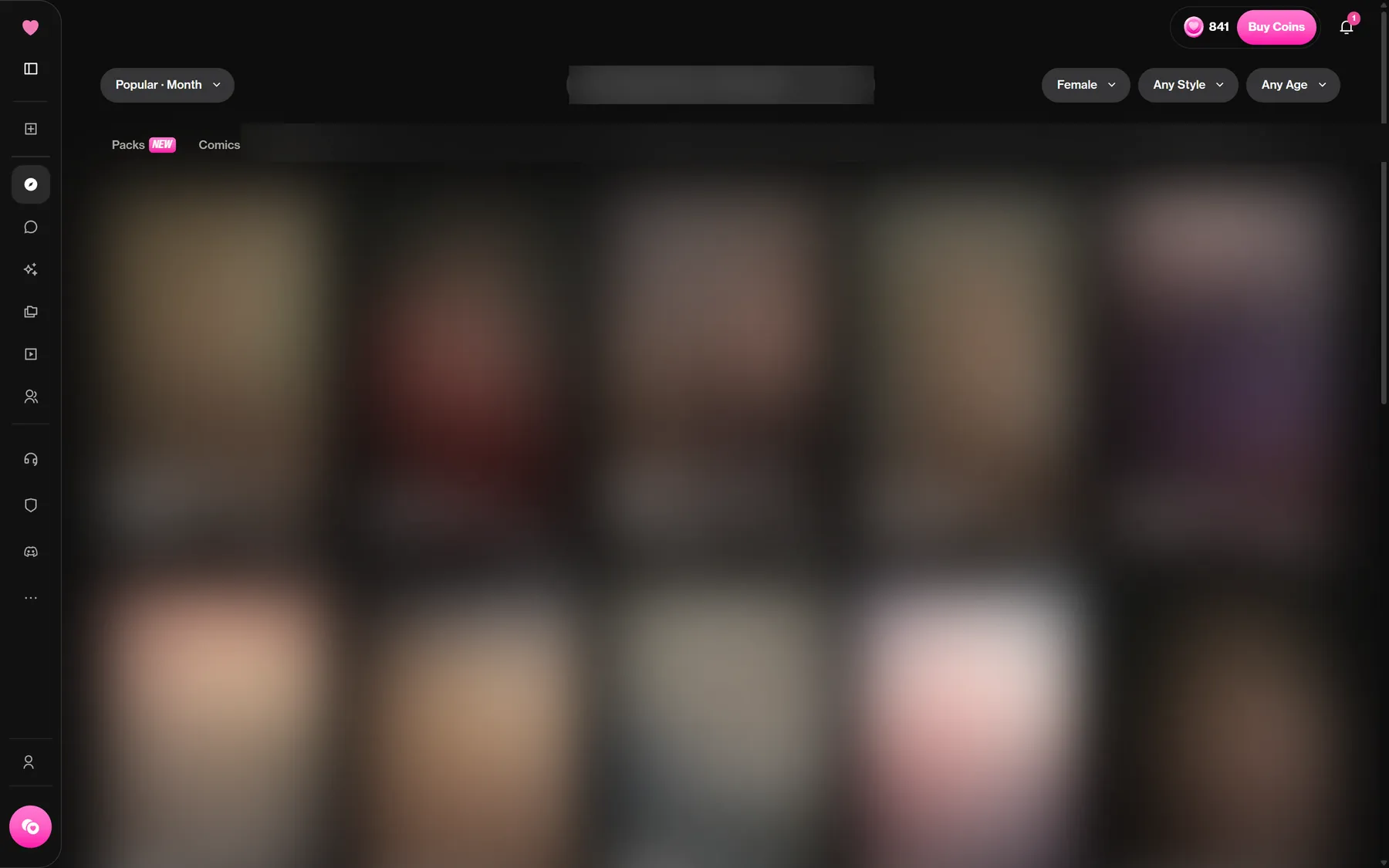
Sort matters more than it looks. For You is the default mix, Popular can be narrowed to today, this week, this month or all time, Newest shows fresh uploads, and Following only lists creators you follow, which is where the creator and feed side of the site starts to pay off. Our own shortlists are on the beginners top.
Later, Preferences lets you block tags or creators you never want to see.
Step 2: read the character page before you click Chat
Clicking a card opens a profile page with the numbers that help you judge it: likes, how many images and videos exist for that character, the release date, the creator's handle, the stated age and gender, and a written description of the premise.
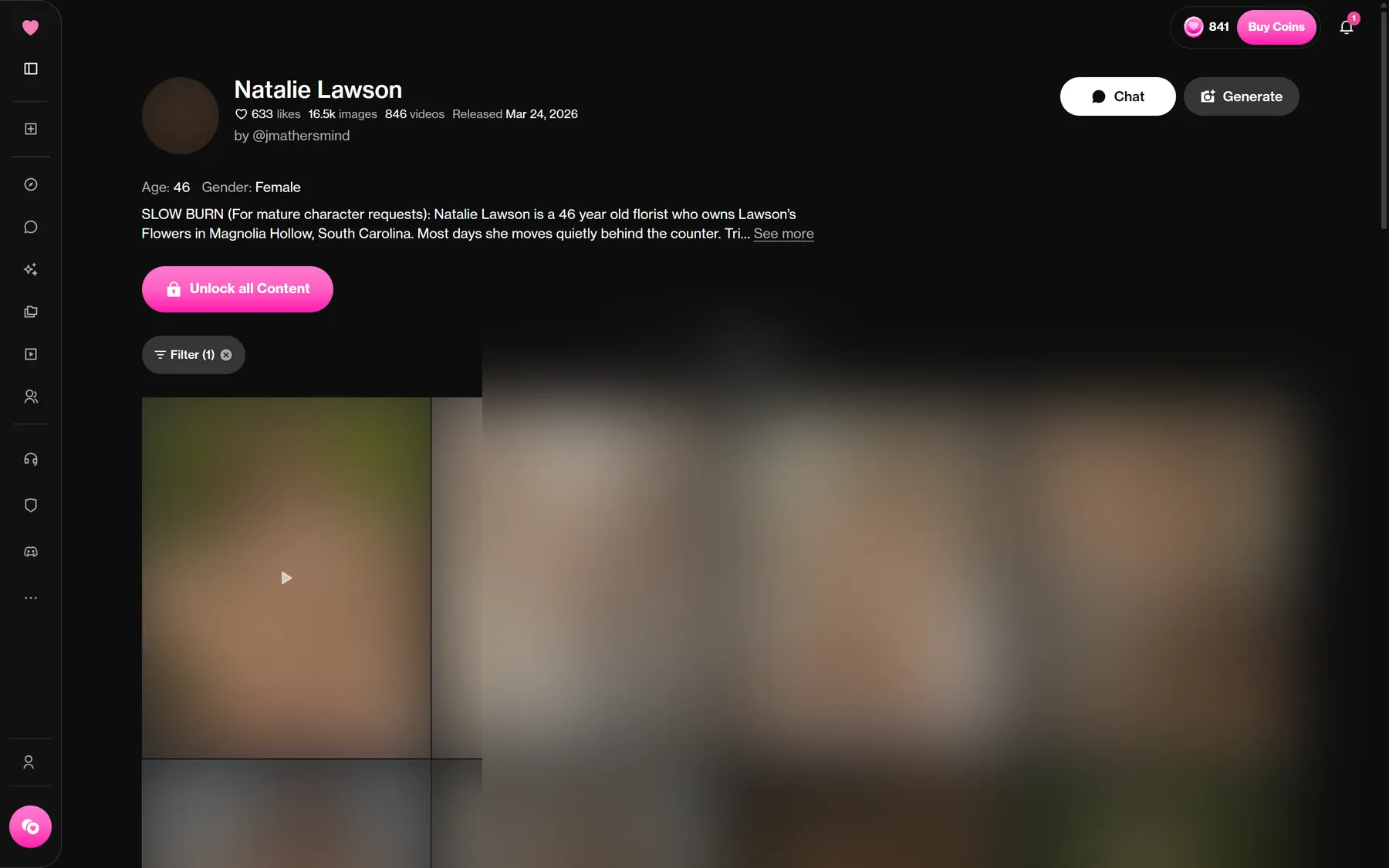
Three buttons sit underneath. Chat starts a conversation. Generate sends you to the image tool with this character preselected. Unlock all Content sells the community pack, every image and video made of that character, for coins. Leave that last one alone on day one; it is the priciest single click on the page (250 to 1,000 coins per the help center).
Step 3: the first chat and the nickname box
The first time you open a conversation, a small window titled Tell us about yourself asks for a nickname and a gender (Male, Female or Other). Characters use these to address you. Pick something you will not mind reading a hundred times; you can change it later in your Profile.
Then the character sends its opening scene and you reply. Replies took 8 to 12 seconds on our account. Under each message you get Read aloud, Copy, Edit, Regenerate and Continue. Near the input there are Suggest a reply, Record voice message, Call Me, Show Scene, New Session and View Media.
One habit worth learning straight away: wrap actions in asterisks. Typing *I open the door* tells the model it is something you do, not something you say, and the site paints it yellow. Characters do the same, so yellow lines are their gestures and plain lines are dialogue.
Want another language? Ask the character to switch. The help center warns it can take a few prompts before it sticks.
Step 4: open the side panel
The right-hand panel is where a chat becomes yours. It holds Members, Model, Writing Style, Voice, Memory, Persona, Preferences, History and Image Model.
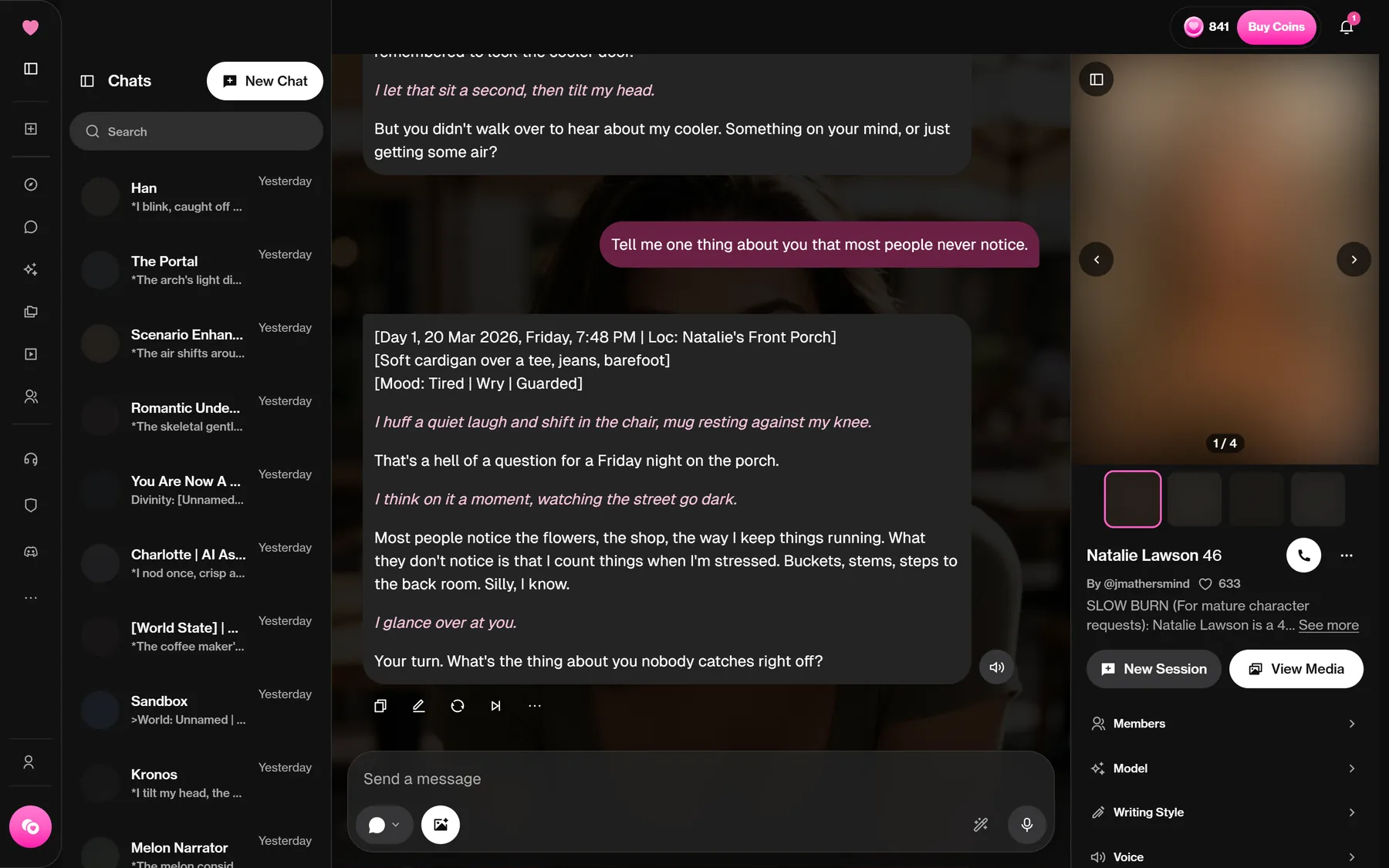
A quick tour of what each part changes:
- Writing Style: Roleplay or Adventure mode, reply format, creativity, and an intensity slider.
- Voice: auto-play, narration of actions and the voice library. Details in our voice guide.
- Memory: automatic memory, Pinned Memories, Custom Instructions and State Trackers. See memory and modes.
- Persona: who you are in the story, and whether you appear in images.
- Preferences: let the character message you first, background, chat colour, bubble opacity and blur, chat language.
Step 5: pick a model without burning coins
The Model tab lists two families. The standard ones are free to chat with as a subscriber: Balanced (the default), Tester (a version being trialled), Muse (more colourful prose) and Eclipse (holds up better in long scenes with lots of small details).
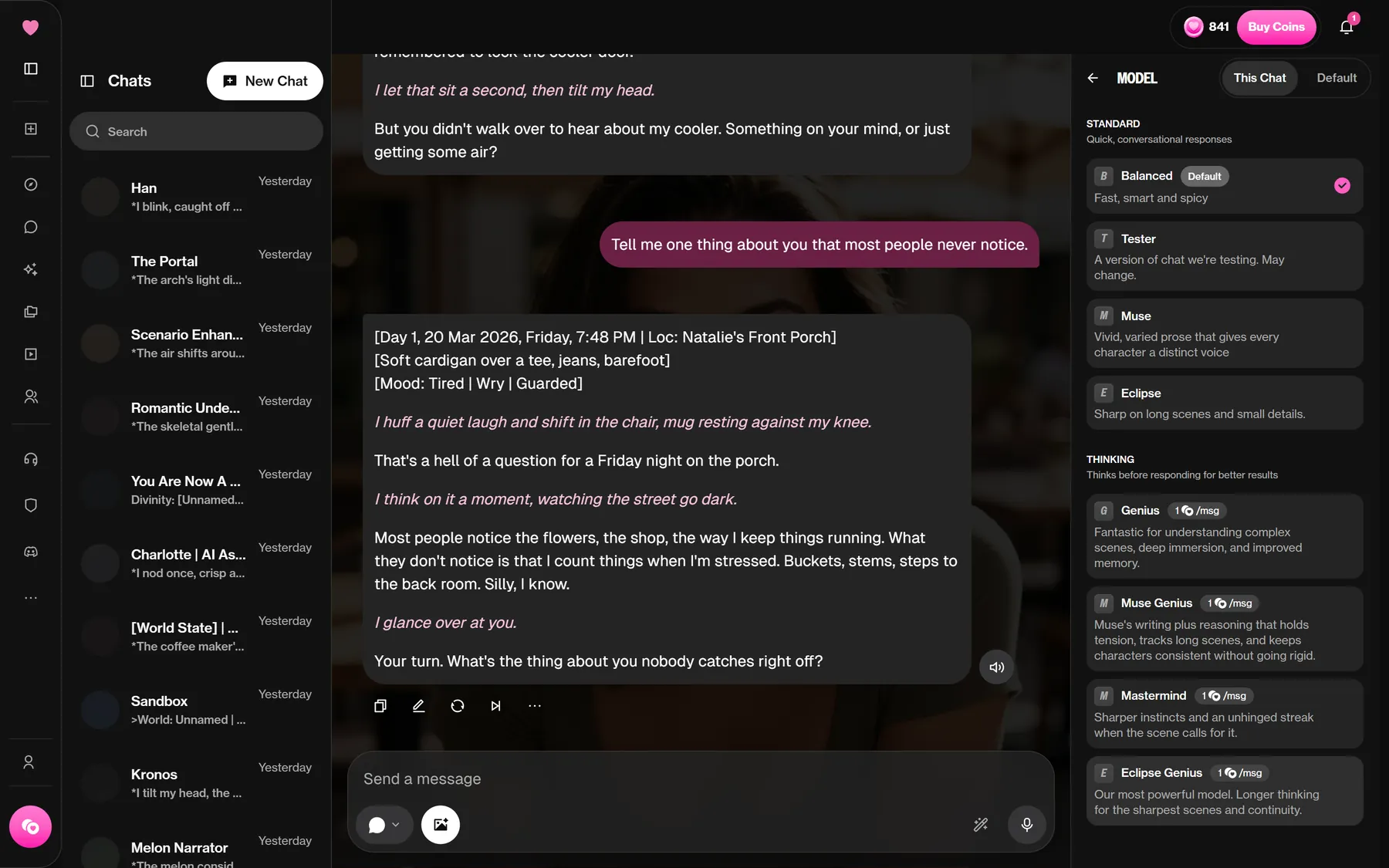
The thinking family, Genius, Muse Genius, Mastermind and Eclipse Genius, charges 1 coin per reply on Premium. Deluxe includes them for free according to the plans page. Stay on Balanced for your first sessions and try Eclipse once a story gets long.
Step 6: Generate and My AI
Generate in the left menu opens the image and video tool. Two images cost 10 coins on our account, every time, and took roughly 20 to 30 seconds. Video starts at 100 coins for 5 seconds. Read the how the image tool works before your first run; one prompt habit saves a lot of retries.
My AI is your shelf: characters you have built (private by default), plus Collections for any community packs you unlock. The Create button starts the character builder, covered step by step in our creator guide.
A sensible first-hour plan
- Sort Explore by Popular this month and open three character pages.
- Chat with one for ten minutes on Balanced, using asterisks for actions.
- Open Writing Style and Memory once, just to see what is there.
- Run one image generation (10 coins) from a character page.
- Check your balance on the Profile page so you know what you started with.
That costs 10 coins and shows you most of the product. If you still want the big picture before paying anything, our OurDream AI review sums it up. Ready to try it? Open OurDream and follow the list.
FAQ
Does chatting cost coins on OurDream?
Not for subscribers on the standard models. We sent 280 messages on the default model on 20 October 2026 and our balance stayed the same. The thinking models cost 1 coin per reply, and free accounts pay 1 coin per message according to the help center. SpicyChat goes the other way with unlimited free messages and ads, as our SpicyChat comparison explains.
What does the yellow text in a chat mean?
It is an action. Anything placed between asterisks is treated as something done rather than said, and you can use the same format in your own messages.
Can I chat in a language other than English?
Yes. Ask the character to switch; the help center says it may take a few messages. The interface itself has 25 languages, labelled Experimental.
Is there an OurDream app?
No native app. The help center suggests adding the site to your home screen from Safari or Chrome, which creates an app-like shortcut.
Where do my own characters go?
Into My AI. New characters are private there until you set them to Unlisted or Public.
Want to see it for yourself?Making an account costs nothing: browse the community characters first, then decide whether a plan is worth it for you.Visit OurDream AI Affiliate link
Worth reading next